
Print or export the production overview
Export the filtered Production Overview list to Excel, or open a print-ready PDF page with your brand header and your chosen columns.
You can take the Production Overview list out of Vestis Labs in two ways: as an Excel file, or as a printable page that you can print or save as a PDF. Both follow what you see on screen, so set your search, filters, level and columns first.
ProductionProduction OverviewExport
Permission: VIEW_BRAND_PRODUCTION
What is included
The export uses the list as it is currently shown:
- The level (SKU Level, Style Option or Style Level).
- The search text and the filters: Category, Collection, Season, Supplier, Location, Status, Health and the Created window.
- The sorting.
- For the printable page, the columns you chose in Columns (or the brand default if you have not changed them).
Export to Excel
Set up the list
Search, filter and choose the level you want to export. See Production overview.
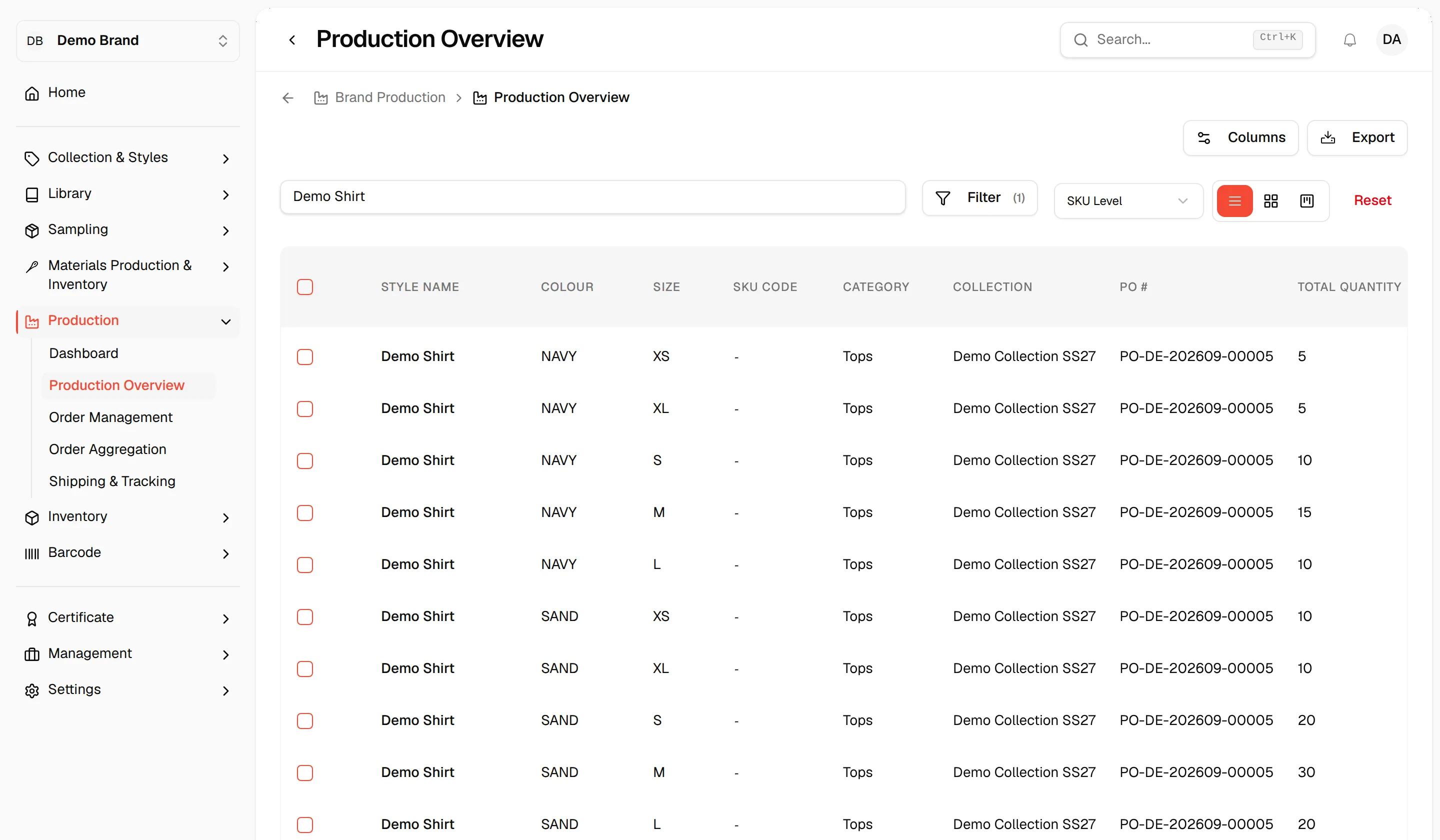
Open the Export menu
Click the Export button at the top right of the page.
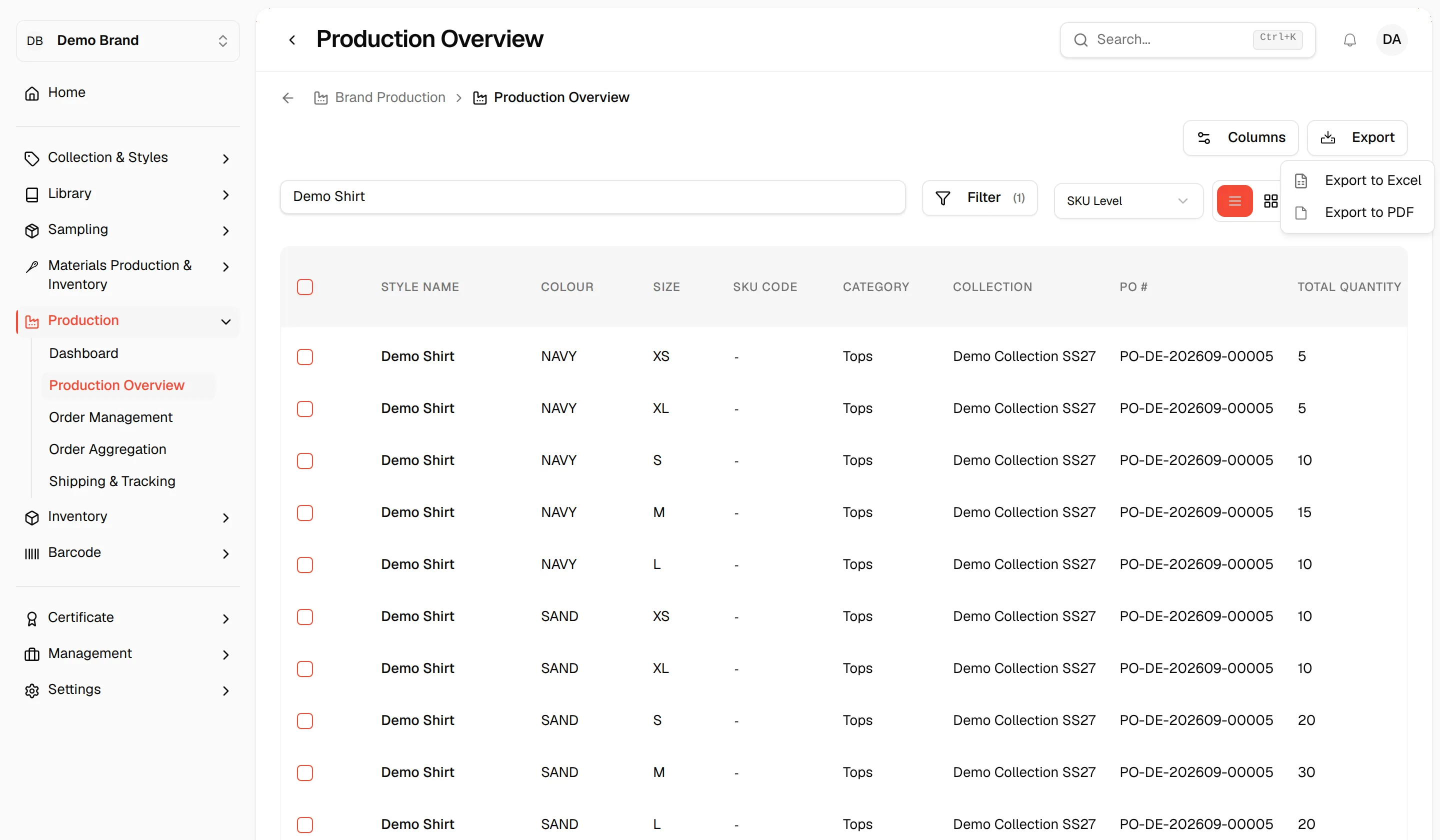
Choose "Export to Excel"
Click Export to Excel. The file downloads to your computer.
Export to PDF
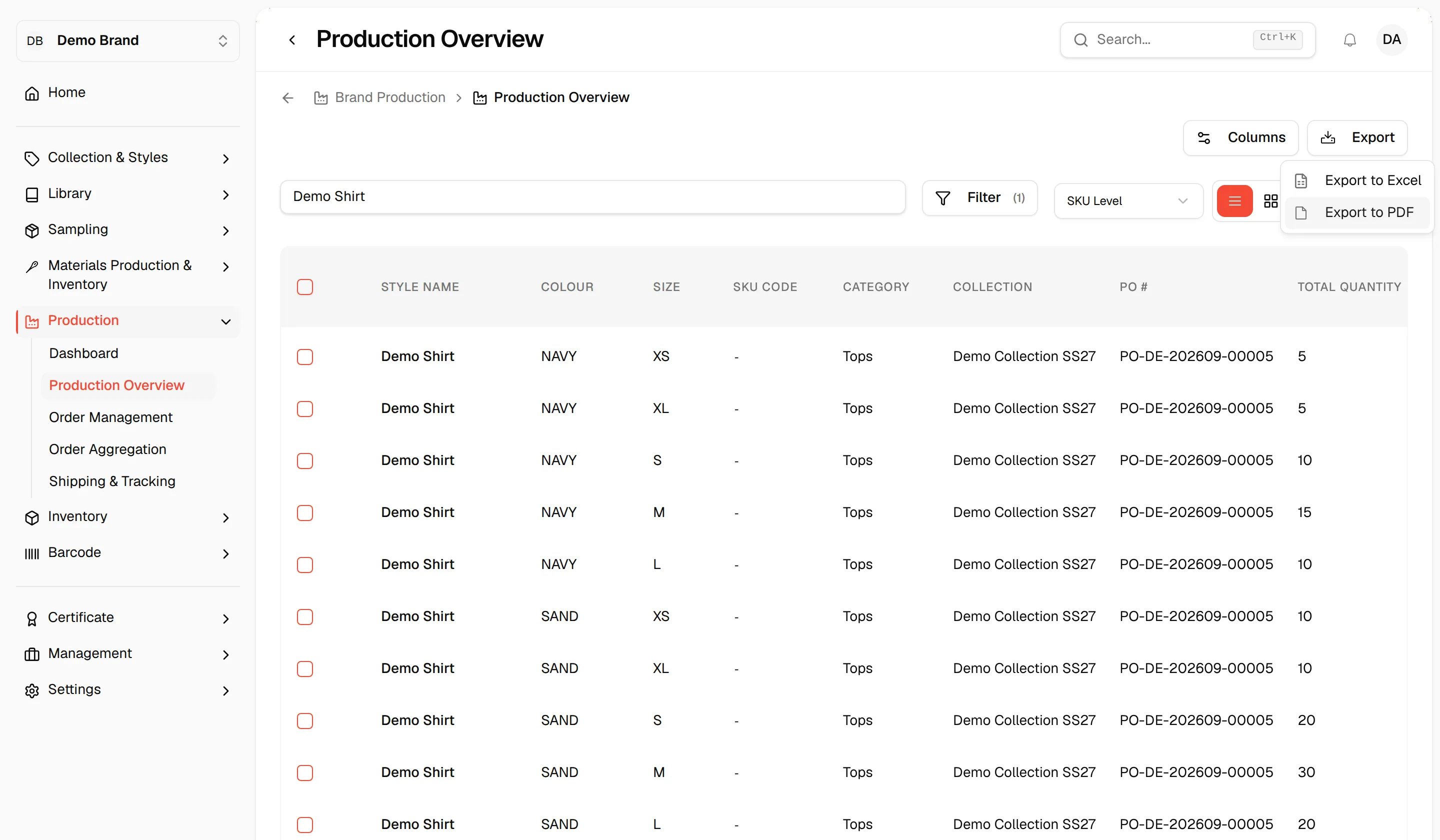
Choose "Export to PDF"
Click Export then Export to PDF. A new browser tab opens with the print page.
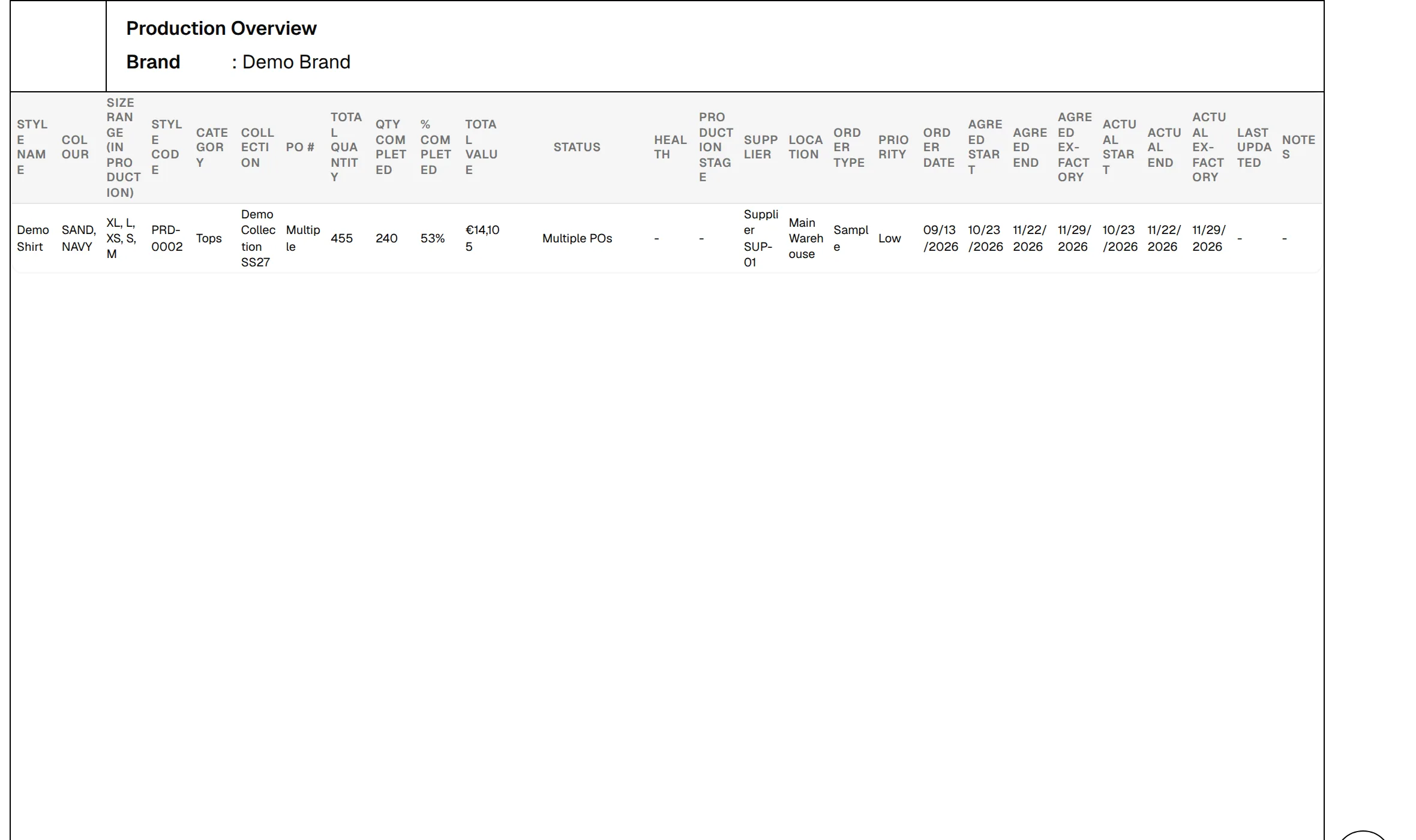
Check the page
Each page has a header with your brand logo, Production Overview and the brand name, followed by the rows for the level you chose. Rows are split across pages automatically.
Choose the layout
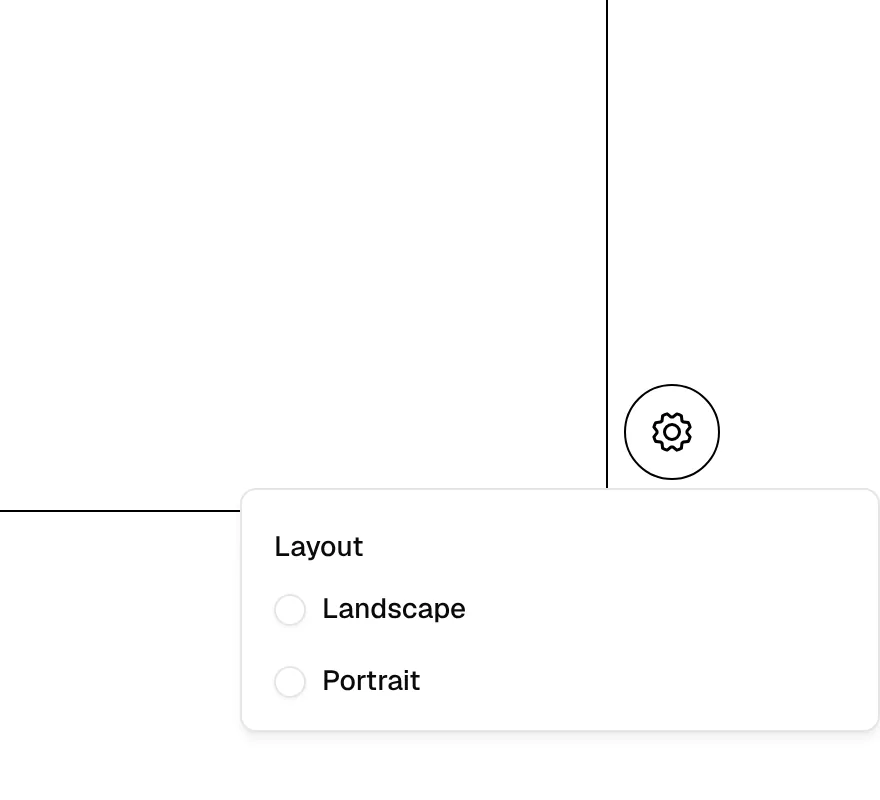
Click the gear button at the bottom right and select Landscape or Portrait under Layout.
Print or save as PDF
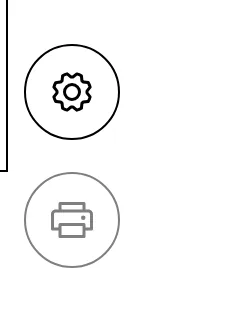
Click the printer button at the bottom right. The button is disabled while the pages are still being prepared. In the print window of your browser, choose a printer or Save as PDF.
Note
The gear and printer buttons are only on screen; they are not printed.
Troubleshooting
The print page says Loading... and stays blank. The page shows this when nothing matches your filters. Close the tab, adjust the filters on the Production Overview and export again.
The columns are not what I expected. The print page reads your saved column choice. Change it with Columns on the Production Overview, then export again.