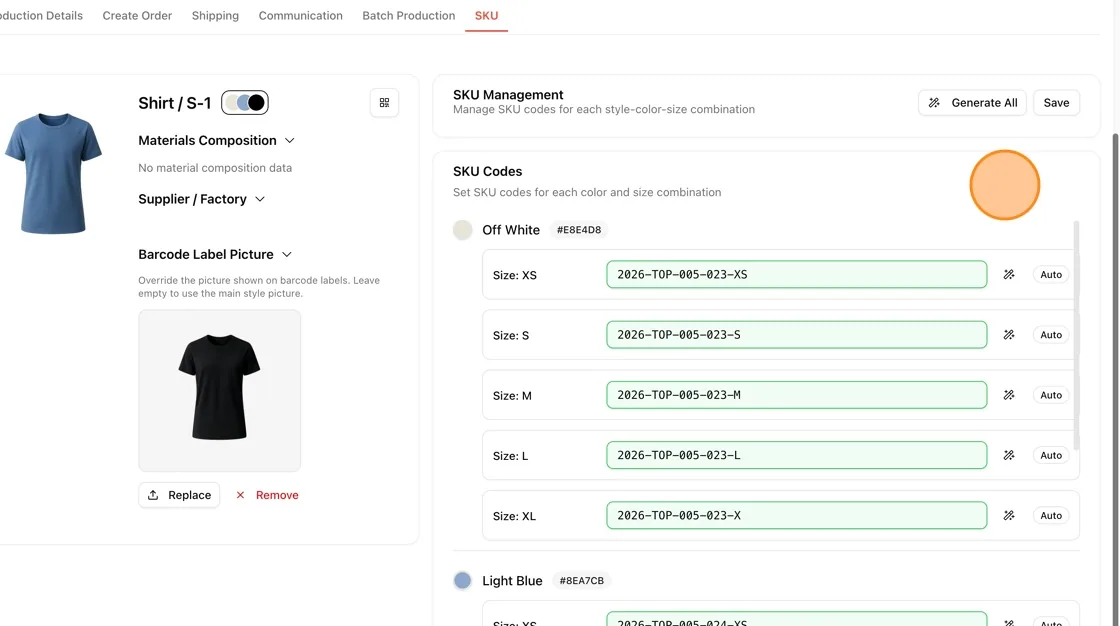
Code generator overview
Steps to Manage Your SKU Codes.
Under review. This page is published while we check it against the live app, so some details may have changed.
Screenshots may be out of date.
There are four key steps to manage and generate SKU codes in the Settings Page:
[
](code-generator-settings.md)
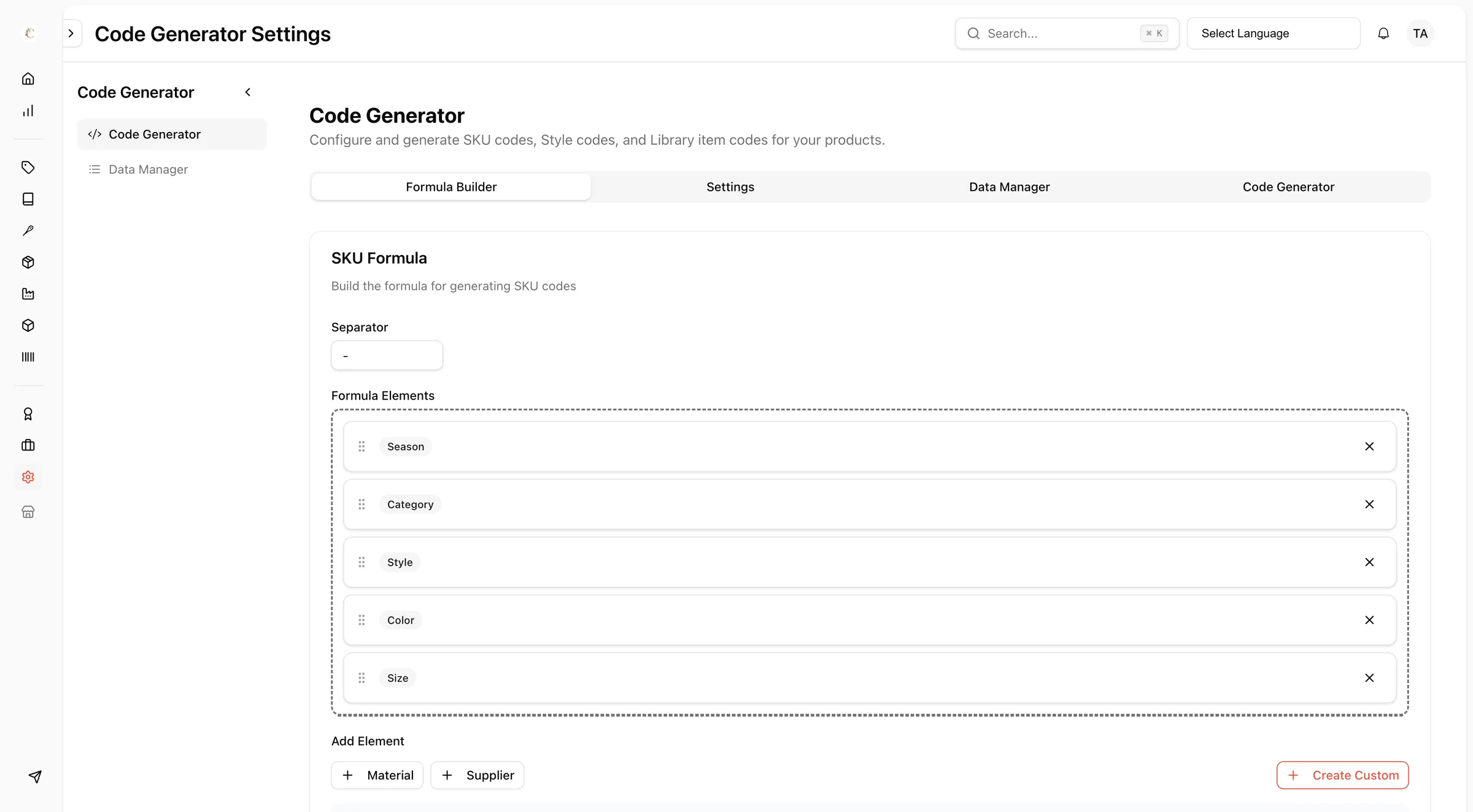
Configure the Code Generator by filling in all required formula elements to define how SKU codes will be structured.
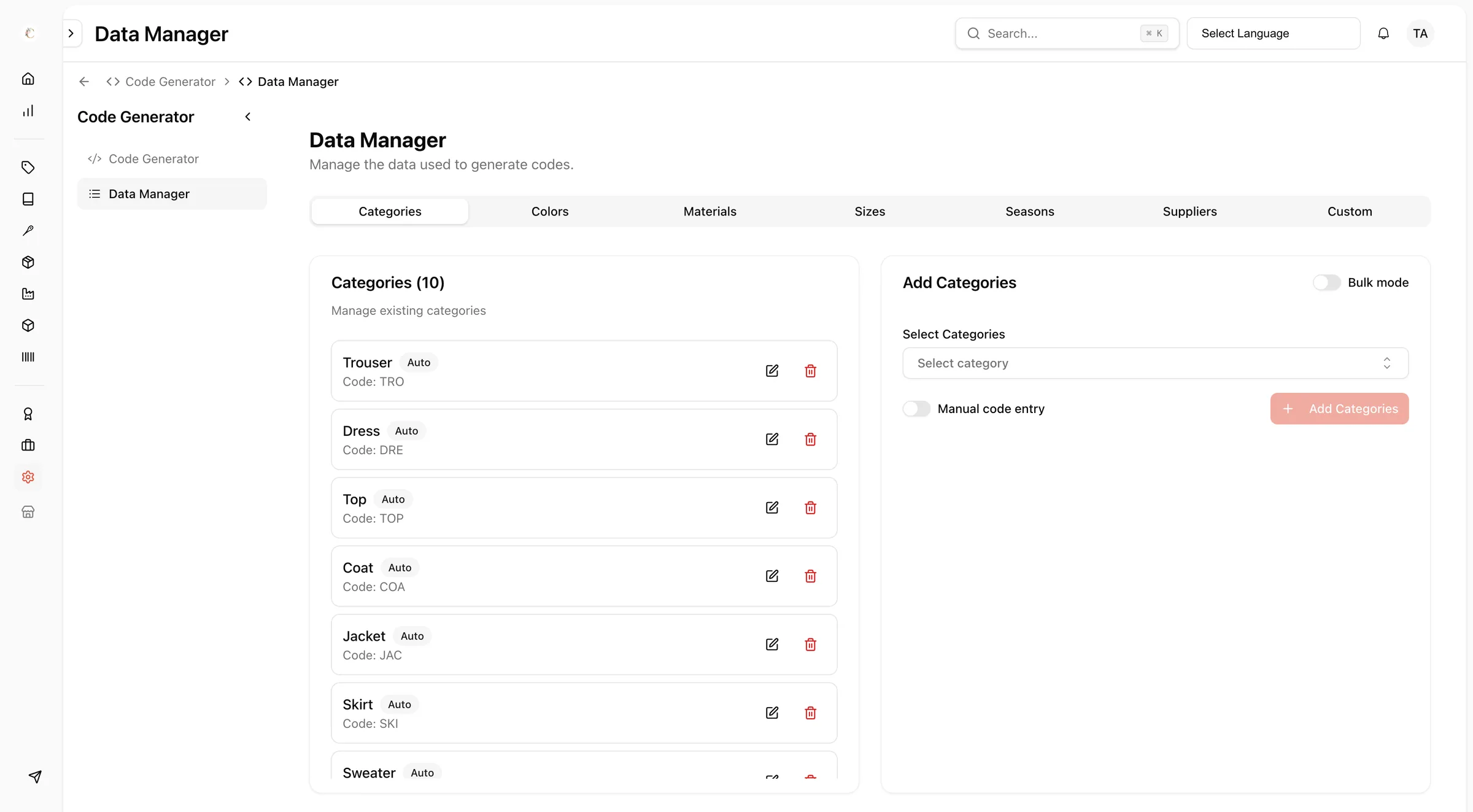
Manage the Data Used for Code Generation
Ensure all reference data, such as categories, colors, materials, sizes, and seasons, are correctly set up in the Data Manager, as these values are used to generate SKU codes.
Once the formula and data are complete, generate SKU codes automatically based on the configured structure and selected data values.
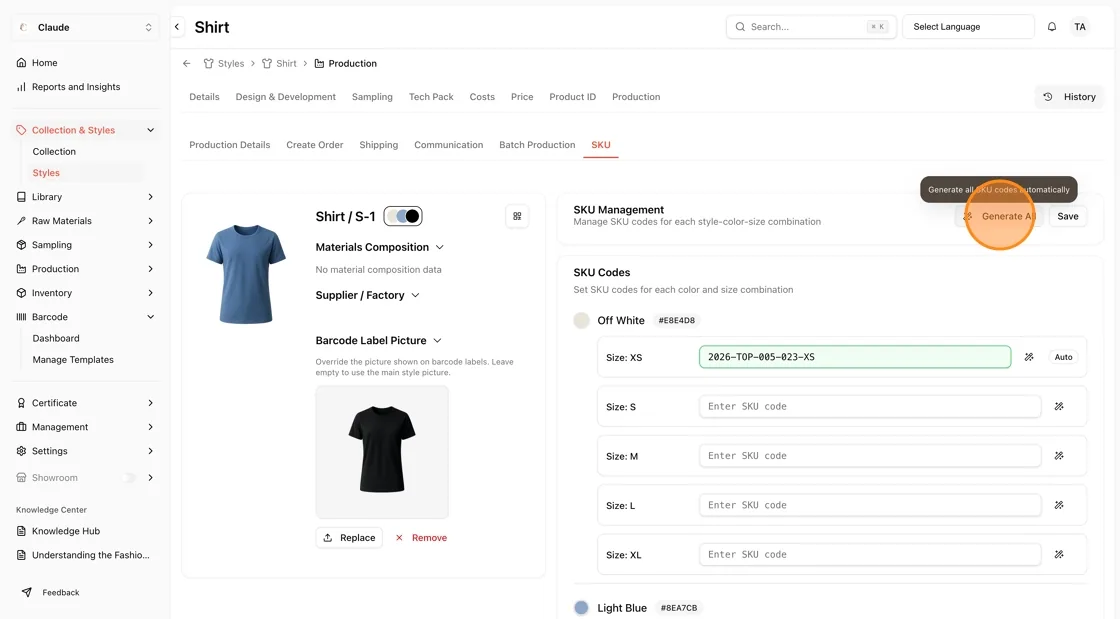
Review and Apply the Generated SKUs
Review the generated SKU codes to ensure accuracy and consistency, then apply them to styles, products, or library items as needed.